FAQ
These FAQ's will help you get started using the network
1. How do I find and access a live camera stream?
All available streams can be found in the Live Streams section of this site. They are listed by station and approximate geographic location. Each station may have multiple cameras pointed in various directions, which will be shown live. You can view any single camera by using the fullscreen option for that camera. Simply place your mouse pointer on that camera and click on the fullscreen icon that appears in the lower left corner of the image. It looks line a double-ended arrow <–>.
Some camera streams are available in high-definition, and can be viewed by clicking on the “View in HD” icon.
2. How do I access the HD streams?
The standard resolution streams are normally sufficient for most viewers, but we also provide HD quality streams for certain users. The HD streams require a password to access them. These are used by media outlets, meteorologists, emergency services, and other professionals. If you are associated with an organization that requires these more detailed streams, feel free to contact us.
3. I would like to contribute a live camera stream to the network. How do I get started?
We are happy to bring more cameras online as the more cameras we have, the better the network works for everyone.
Whether you purchase a camera from us, or from somewhere else, there are several things to keep in mind.
To get started, you need to make sure you meet the following requirements:
- You have a suitable location for your camera(s) – with a clear view of the sky and free of obstructions.
- Your camera(s) do not infringe on anyone’s privacy concerns (such as neighbors).
- Your camera(s) must have good, reliable access to power and internet connections.
- Your internet connection must have sufficient upstream bandwidth to support the live, 24 hour streams coming from your camera(s). See next FAQ to test your connection.
- You have the necessary technical skills to set up and maintain your station.
If you’re comfortable with these requirements, the next step is to contact us and we can get started. Also be sure to continue reading to get your station up-and-running.
4. How can I determine if my internet connection can support my camera(s)?
Perhaps the easiest way to check your connection is to visit the free website at www.speedtest.net. If your cameras will utilize a wired connection to your router, then it’s best to run the test from a computer that is also wired. If your cameras are to utilize a Wifi connection, then you may want to test from a computer on that Wifi as well.
Pay particular attention to the UPLOAD speed. This is what your camera uses the most. Please note: Your isp may limit your upload speed to a fraction of their advertised (download) speed – which is why testing is important.
Although everyone’s setup will differ, a good rule-of-thumb is to allow for 2Mbps of upload speed per camera while still allowing additional bandwidth for your normal internet use.
Livestream cameras utilize A LOT of data. If you are using an internet connection that throttles or limits your data use, you may want to take this into account when deciding to set up cameras. Satellite and cellular based internet providers are the most common services to utilize limits and throttling.
5. What kind of camera(s) do I need? RTSP, RTMP, SRT, ONVIF?
Your camera must be able to provide a video stream to our servers. Some cameras will not allow streams to be sent to third-party services, and those will be covered in another FAQ. There are different protocols utilized by cameras to send out streams , but we’ll focus on the two most common that you’ll encounter.
The easiest to use is any camera which uses the RTMP protocol. These cameras (once programmed) will start sending a stream to our servers when powered on. This is referred to as ‘push”, since the camera ‘pushes’ the data into our servers. No additional equipment is necessary to use these types.. Unfortunately these cameras are getting harder to find.
The other protocol is RTSP – which is much more common, but requires a little more effort to use. RTSP is a ‘pull’ protocol, where our server will reach out and ‘pull’ the data stream from the camera. Wxcams.net sells a device which simplfies the setup, which we call a CLC (camera line controller). In many cases, a CLC is required to use RTSP cameras.
[technical notes for avoiding the CLC requirement]
The CLC establishes a tunnel to the camera(s) which avoids the task of setting up port forwarding in the router, and also bypasses isp cgnat issues. If your internet connection is behind a cgnat, the CLC may be your only option to use RTSP based cameras. If your connection is not cgnat’ed (lucky you), you can set up port forwarding on your router to allow outside access to your camera. Most cameras use port 554 for RTSP. Be sure to use separate ports if multiple cameras are used, and put each camera on it’s own static ip within the lan. If you do not have a static ipv4 address, you will need to use a dynamic ip host such as noip.com.
WXcams.net does not pull RTSP streams over ipv6 at this time.
Third party reverse proxy tunnels do not handle streaming video reliably, and should be avoided.
6. What features should I look for in cameras?
Look for cameras supporting at least one of the protocols described above (RTMP,or RTSP). If a camera supports RTMP, it most likely supports RTSP as well. SRT is a new protocol showing up in some cameras. Our servers fully support SRT as well.
Resolution: Very high resolutions are not necessary for the WXCam network. We have very good results using 4-5 megapixel cameras. We even have some 2Mp cameras that perform very well. A high quality, but lower resolution camera may give better results than a higher resolution camera from a low quality brand.
Lenses: When considering lenses, there is a tradeoff between field of view (fov), and distortion of the image. We prefer a 3.6mm lens to give a good balance between these two factors. 2.8mm lenses give a little more distortion, but are considered acceptable.
Either of these lenses will allow four cameras to cover 360 degrees.
Don’t go below 2.8mm if at all possible. A lens larger than 3.6mm will have little distortion, but you may find the fov is too narrow and you’ll be unable to achieve a full 360 degrees with only four cameras.
Wifi or Wired: Depends on your situation. Wifi cameras (also called wireless) can work well if you don’t use too many of them. Wifi cameras that support RTMP are getting hard to find nowadays. Wired (ethernet) connected cameras provide superior performance.
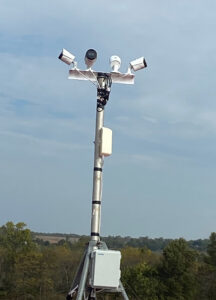
This photo shows a camera setup using four wired ethernet cameras connected to a 5GHz Wifi bridge. This configuration works much better than using four individual Wifi cameras.
7. What types of cameras will not work?
Many cameras are not compatible with our network. In most cases these cameras are in closed (or sandboxed) environments where access is strictly limited. Some examples are:
- Cameras that are part of a security system package (e.g. Ring, ADT, Simplisafe, etc…)
- Cameras and camera systems where a paid subscription is necessary to view them.
- Cameras that do not support RTMP, RTSP, or SRT protocols.
- PTZ cameras
If in doubt, feel free to ask us if a particular camera will work.
8. Can you recommend any cameras?
Here are a couple cameras we recommend. Each one supports RTMP for ease of setup and use. RTSP is also supported.
- Many cameras from Amcrest are usable. The Amcrest IP5M-B1186EW works very well. Supports RTMP, RTSP. no Wifi Support.
- Many Cameras from Dahua also work well. The IPC-HFW1435S-W supports RTMP, RTSP, and Wifi as well.
You can also purchase cameras direct from us, fully programmed and ready to install. Contact us for more information.
9. Do you support camera systems that use a DVR (NVR)?
DVR’s (also NVR’s) are very popular for home and business use, and a great way to put your skywatch cameras on our servers. Most DVR’s will work great with our servers using RTSP, but may require our clc. (see FAQ 5 for RTSP and CLC’s)
If you have unused camera channels available on your dvr, why not put them to use on our skycam network?
Once I have cameras, how do I get them on the network?
Simply contact us and we can get you the setup information you need to make your cameras live.
